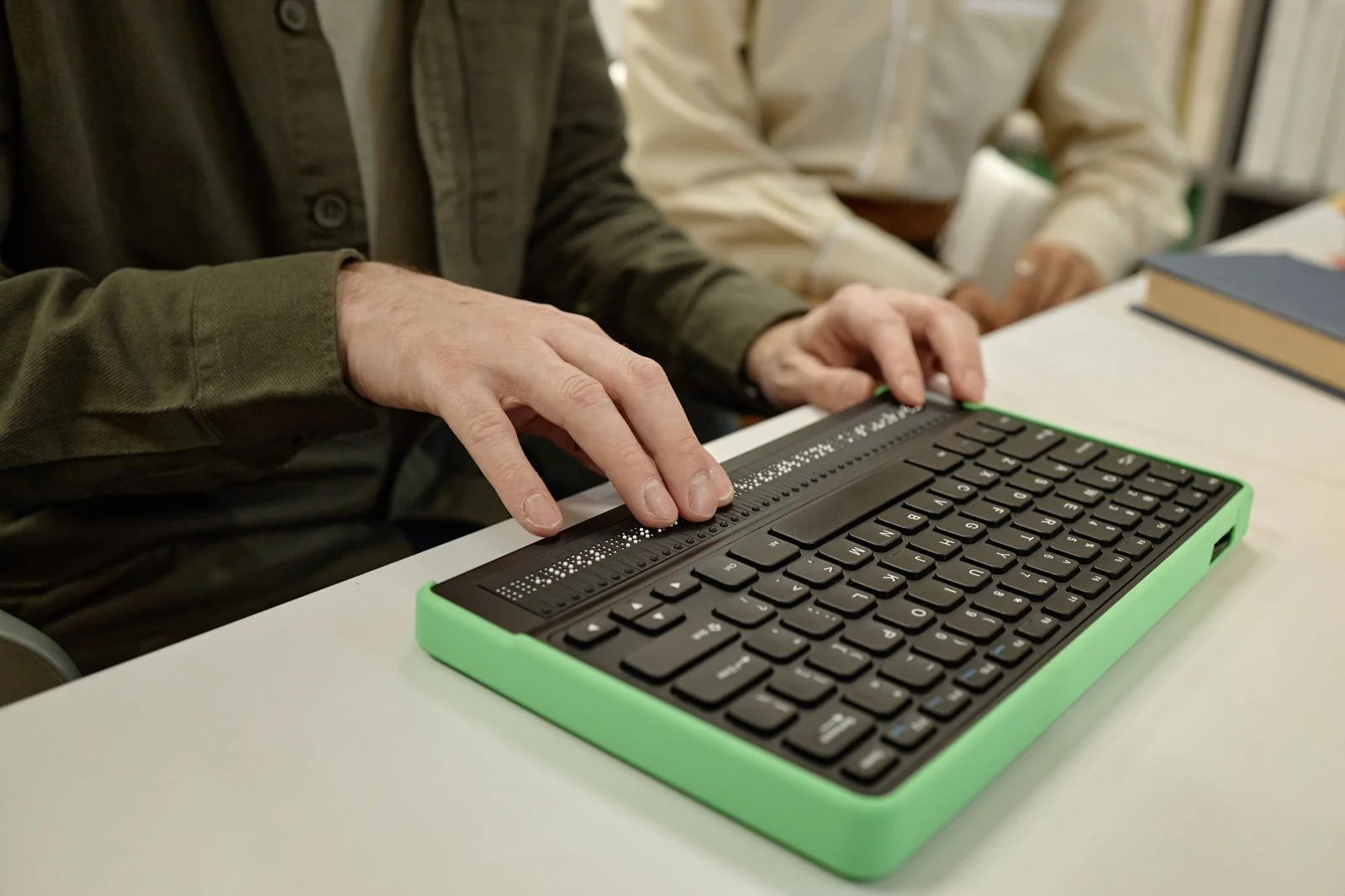
An ADA-compliant website is one that people with disabilities can use: someone who is blind and uses a screen reader, someone who can't use a mouse and moves through pages with a keyboard, someone with low vision who zooms in, someone who is deaf and needs captions on video. The ADA itself doesn't spell out a technical standard for business websites, but the Department of Justice has said websites of businesses open to the public need to be accessible, and the Web Content Accessibility Guidelines (WCAG), at level AA, are the yardstick courts and businesses use. Meeting them is mostly good design and careful building, not a plugin.
Accessibility is part of how we build every site. Our own site aims at WCAG 2.2 AA, offers a panel of display options in the header, and has an accessibility statement that lists what we know still falls short. This guide explains what accessibility means for a business site and what to check first. It isn't legal advice.
What the Law Says, in Plain Terms
- The Americans with Disabilities Act (ADA) requires businesses open to the public to be accessible to people with disabilities. It was written before the web, and Title III, which covers businesses, doesn't name a web standard.
- The Department of Justice, in guidance published in 2022, said businesses' websites must be accessible and pointed to WCAG as helpful guidance, without making any one version mandatory for private businesses.
- State and local governments have a stricter, specific rule under Title II, which names WCAG 2.1 AA. That rule doesn't apply to private businesses, but it shows the standard the government considers reasonable.
- Lawsuits and demand letters over inaccessible websites are common, and they often target small businesses. Many cite specific WCAG failures.
If you're worried about a specific letter or lawsuit, talk to a lawyer. The rest of this guide is about making the site work for everyone, which is also the best protection.
What WCAG Asks For
WCAG is organized around four ideas. A site should be:
- Perceivable: people can see or hear the content in some form. Images have text descriptions, videos have captions, text has enough contrast.
- Operable: people can use it without a mouse, and nothing traps or rushes them.
- Understandable: text is clear, forms explain what they need, errors say how to fix them.
- Robust: the code is clean enough for screen readers and other tools to read correctly.
Level AA is the usual target. WCAG 2.2, published in 2023, is the newest version and adds a few checks about focus, dragging and target size on top of 2.1.
The Problems We See Most

These cause most accessibility failures on small business sites:
- Images without text descriptions. A screen reader says "image" or reads a file name. Every meaningful image needs alt text that says what it shows. Decorative images should be marked so screen readers skip them.
- Low contrast. Light gray text on white, or white text on a busy photo, is hard for many people to read.
- Things that only work with a mouse. Menus that open on hover, sliders and pop-ups with no keyboard control, or no visible outline showing where the keyboard focus is.
- Unlabeled forms. Fields with placeholder text instead of labels, and error messages that only turn a box red.
- Videos without captions, and audio without a transcript.
- Headings used for size, not structure. Screen reader users jump between headings to scan a page, so the order has to make sense.
- Links that say "click here." A list of links that all read "learn more" tells nobody anything.
- Menus and booking widgets from other companies that aren't accessible. Your site is only as accessible as the tools embedded in it.
- PDF menus and price lists. Often unreadable to screen readers. Put the content on the page as text.
Why Overlays Aren't a Fix
Some companies sell a line of code that adds an accessibility toolbar and promises compliance. A toolbar can help some visitors adjust text size or contrast, but it doesn't fix the underlying code: missing labels, broken keyboard paths and images without descriptions are still there. In 2025 the Federal Trade Commission ordered accessiBe, a maker of one such tool, to pay $1 million over claims that its product could make any website compliant.
Our own site has a display options panel, and we're glad to offer it, but it sits on top of a site built to the standard. It doesn't replace the work.
How to Check Your Site in an Afternoon

You don't need special training to find the biggest problems.
- Unplug your mouse. Press Tab to move through a page. Can you reach every link, button and form field? Can you always see where you are? Can you open the menu and book an appointment?
- Zoom to 200 percent. Does the page still work, or does text overlap and get cut off?
- Run a free checker. WAVE from WebAIM, or Lighthouse in Chrome's developer tools, flags missing alt text, contrast problems and unlabeled fields.
- Turn on a screen reader. VoiceOver is built into Macs and iPhones, and NVDA is free for Windows. Listen to your home page and your contact form.
- Check your videos for captions and your PDFs for a text version.
Automated tools catch only part of the problems. The keyboard and screen reader tests catch the rest.
Build It In From the Start
Fixing accessibility after launch costs more than building it in. On a new site or a redesign, ask for:
- Color and type choices checked for contrast before design is approved
- Real headings, labels and buttons in the code, not styled boxes
- Keyboard testing of menus, forms, sliders and pop-ups
- Alt text written as content, not left to the end
- Captions on every video
- An accessibility statement with a way to report problems
It helps search too. Clear headings, descriptive links, alt text and fast, clean pages are things Google and AI tools read as well. Our website redesign checklist includes accessibility as a step.
Your Accessibility Checklist
- Move through your home page and contact form with only the keyboard.
- Run WAVE or Lighthouse and fix missing alt text, contrast and labels.
- Add captions to every video.
- Replace PDF menus and price lists with text on the page.
- Check that booking and ordering widgets work with a keyboard and screen reader.
- Publish an accessibility statement with a contact for reporting problems.
- Recheck after every redesign or major change.
Common Questions
Does the ADA apply to my website?
If your business is open to the public, the Department of Justice's position is that your website should be accessible. Courts have differed on the details, especially for businesses with no physical location. A lawyer can tell you how it applies to your situation.
Is there an official ADA website standard for businesses?
Not a binding one for private businesses yet. WCAG 2.1 or 2.2 at level AA is the standard most people use, and the one the government adopted for state and local governments.
Will an accessibility plugin make my site compliant?
No. A plugin can add display options, but it can't fix the code underneath. Treat it as an extra, not a fix.
How much does it cost to make a website accessible?
It depends on how the site was built. Building it in from the start adds little. Fixing an older site can mean reworking templates, forms and embedded tools. An audit tells you where you stand.
If you'd like your site checked or rebuilt to the standard, get in touch. We design and build websites for businesses of all kinds across metro Atlanta and North Georgia.